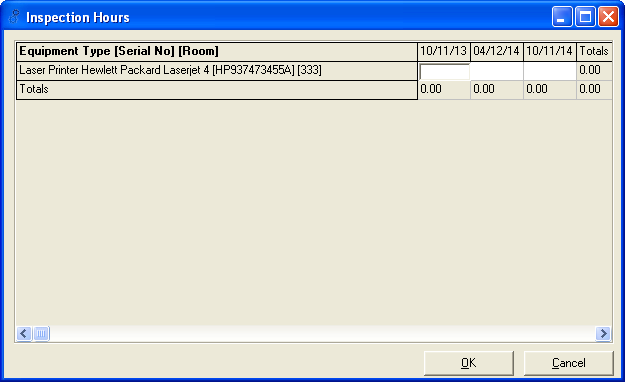
If you have equipment at a particular location that is covered under a contract, you can add it to the contract.
To add Equipment that is covered under a Contract:
1. On the Service Contract, click on the Add button underneath Equipment Covered
![Service Contract - 60 [[ABC001] ABC Store #001] Main Info tab](https://help.jobcost.com/wp-content/uploads/2016/08/Service-Contract-60-ABC001-ABC-Store-001-Main-Info-tab.png "Service Contract - 60 [[ABC001] ABC Store #001] Main Info tab")
2. If there is Equipment associated to this particular Location, it will appear in the list. If the list is blank, you need to add equipment to the location.
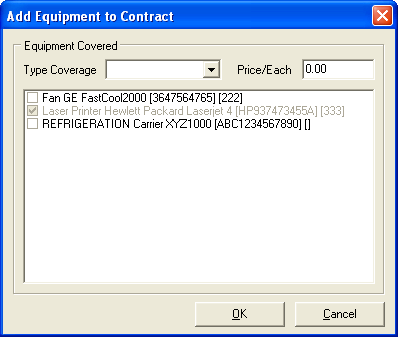
3. You can select the Type of Coverage and the Price of each piece of equipment.
4. Check the checkbox beside the piece of equipment that is covered by this Contract.
5. Click OK
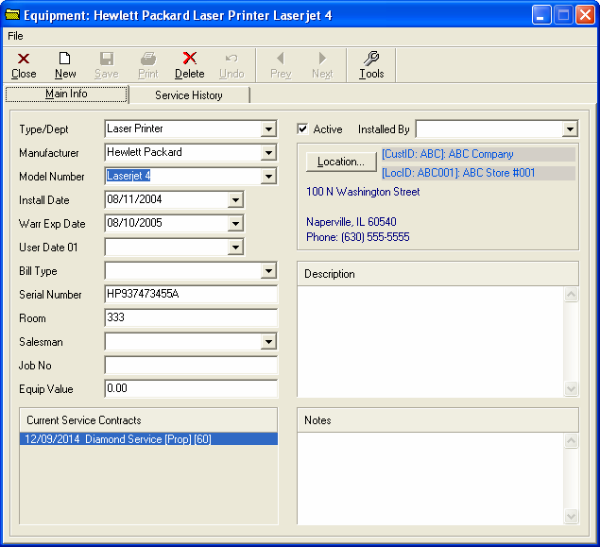
6. By clicking Open on the piece of Equipment, you can see all the information on this equipment, such as Install Date and Warranty date.
7. The Hours button allows you to enter Inspection Hours.