Sorting is the act of arranging according to class, kind, or size. Any grid can be sorted or classified by the fields that exist in the grid. For example, if you click on the Customers [All] grid, you can sort the grid by fields such as "Customer ID", "Customer Name", "Address", or "Phone" in ascending or descending order.
SORTING A GRID
There are two ways you can sort grids. The first method is the easier method and is described in the following sub chapters. The second method uses the Filter/Sort button. This takes a more advanced approach by filtering and sorting a grid simultaneously. See how to use the filter/sort button here. Once you click on a grid, you can sort the grid by any field that exists in the grid. For example, the Customers [All] grid could contain the following fields:
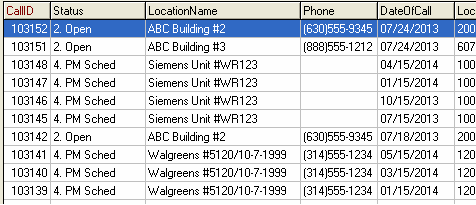
| Customer ID # | Customer Name | Main Contact | Phone | Address |
| City/State | Customer Type | Active | Industry | Territory |
This grid can be sorted by any of these fields.
If you want to sort the Customers grid to show city names in alphabetical (ascending) order, follow the steps below:
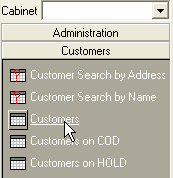
1. Click on the Customers grid in the cabinet.
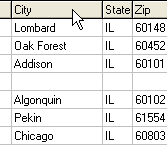
2. Find the "City" field and single click on the "City column heading" which looks like part of the toolbar. The grid is now sorted alphabetically by city name.
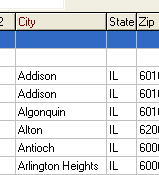
TIP: Sorting can help show fields that are missing critical information. It does this by listing empty fields first in the sort order.