The Map icon in the toolbar will take you to your Headquarter's location if it has been entered in the Administration settings.

To set the map to open on your HQ address
1. Click File
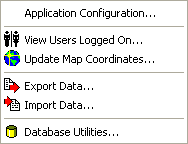
2. Click Administration
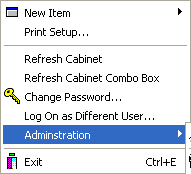
3. Click Application Configuration
4. The Application Configuration form appears
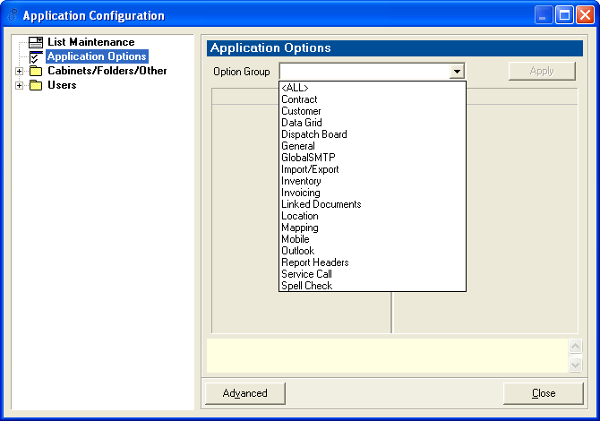
5. Scroll through the Options Group drop down list and choose "Mapping"
6. In the HQ Address field, type in your HQ Address in the following format:
998 Corporate Blvd, Aurora, IL 60504
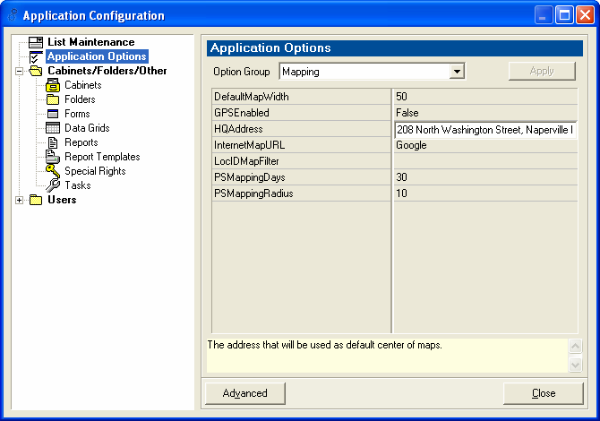
7. Click Apply
8. Click Close
To verify that you have set the Map correctly, click the Map icon in the toolbar.
Tip: Depending on when the latest map was created, the map data could be askew. If it is, please contact us for support.
Tip: To assist with dispatching technicians and resources, Mobile Resource Manager can show locations of Site Visits along with a technician's home address. See the Service Call Map page for more information on how to show site visits on a map.