Modifying the service call associated with the invoice is your first step to adding charges to an invoice.
1. Pull up the service call that the invoice will be made from:
![Service Call: 103113 [[ABC001] Store #001] - Main Info tab](https://help.jobcost.com/wp-content/uploads/2016/08/Service-Call-103113-ABC001-Store-001-Main-Info-tab.png "Service Call: 103113 [[ABC001] Store #001] - Main Info tab")
2. After doing this, navigate to the Charges tab:
![Service Call: 103113 [[ABC001] Store #001] - Charges tab](https://help.jobcost.com/wp-content/uploads/2016/08/Service-Call-103113-ABC001-Store-001-Charges-tab.png "Service Call: 103113 [[ABC001] Store #001] - Charges tab")
3. Here, you can use the Add, Labor, Travel, and Discount buttons to add different types of charges to your invoice. Below are examples of each option:
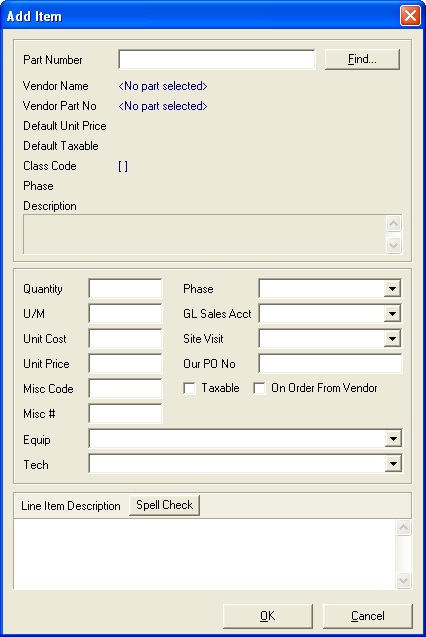
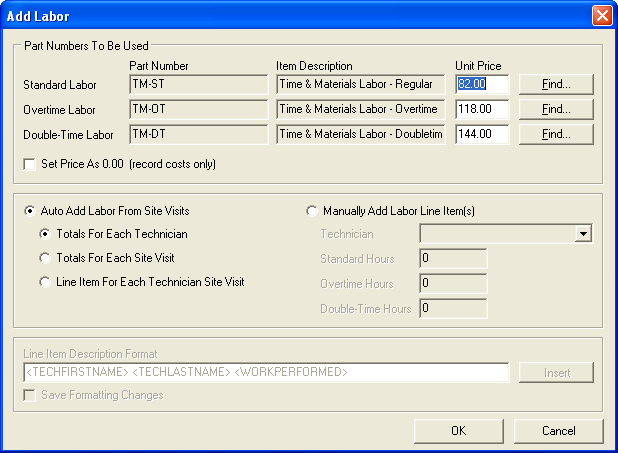
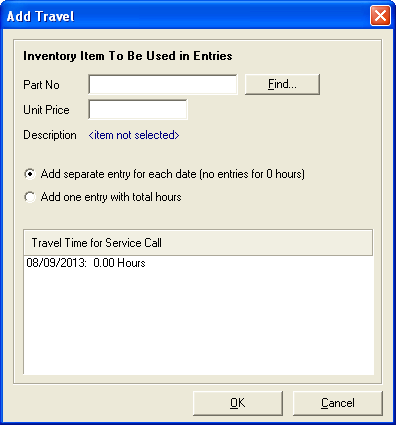
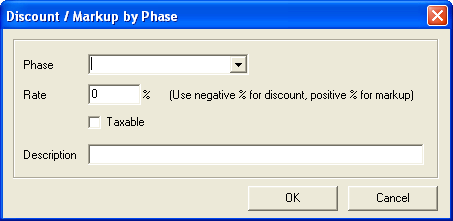
4. Upon completion, these charges appear on this tab's list and be added to the total amount of charges on the invoice.