To export Inventory Items from Peachtree®
1. Open up Peachtree®
2. Click File - Select Import/Export
3. Click on "Inventory" on the left side
4. Click on "MRM Inventory Items List" and then click the Import button
5. On the next form, click the OK button
6. Now you need to open Mobile Resource Manager and run the import.
To import Inventory Items into Mobile Resource Manager
1. Click File > Administration > Import Data
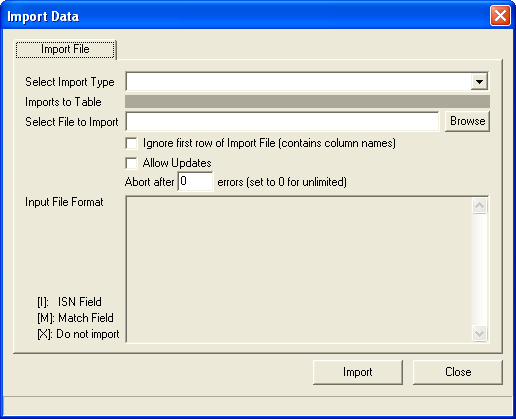
2. From the drop down list beside "Select Import Type" choose "Peachtree® Inventory Items"
3. Uncheck the "Ignore first row of Import file" if the file contains column headings. Normally this is unchecked.
4. Keep the "Allow updates" checked so that any Inventory Items that are already in Dispatch get their proper updates
5. Click Import
6. Click Yes on the Run Import prompt
7. If you receive any errors importing, the number of errors will show up in red. Another tab will appear on the form that will explain the error messages. Copy and paste
this in an email and send to support if you need further assistance.