Location

The Location form is accessible through the customer's profile, due to the fact that locations are automatically created when a new customer is entered. In order to see details of a location, you must first click on one of the customer's locations in the Location/Details tab of the customer's profile.

Tip: For more information on changing location information, see this page.


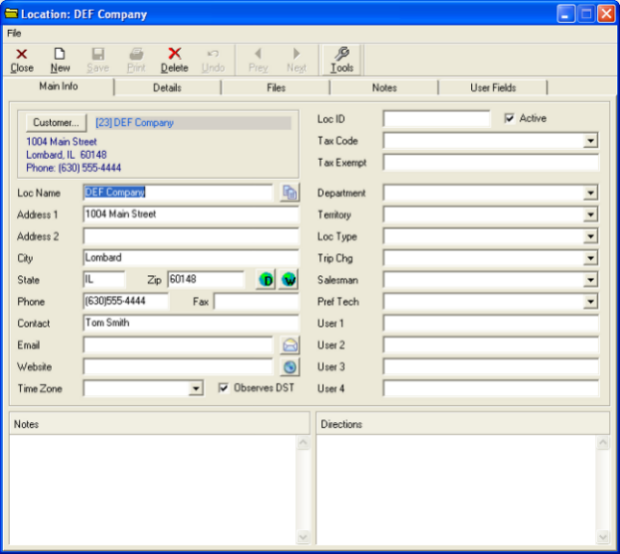
The Main Info tab displays general information about the location.

Button - copy contents to clip board - This button allows you to copy the contents of the main info tab to the clipboard.
Button - web map of customer's location - This button directs you to a web map of the customer's location.
Button - prepare blank email with the customer's email as the recipient - This button will prepare a blank email with the customer's email set as the recipient.
Button - launches a web browser to the website that is filed (if applicable) - This button launches a web browser to the website that is filed(if any).
Button - Customer - This button lets you assign a customer to this location. 

The Main Info tab displays general information about the location.

Location: DEF Company - Main Info

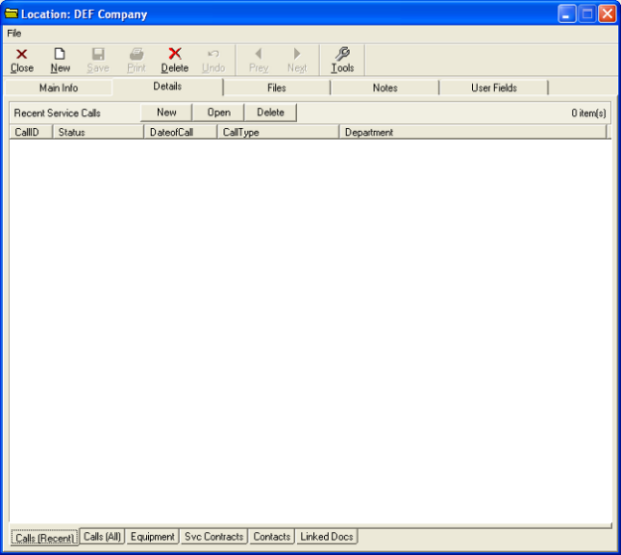
The Details tab displays recent service calls relating to that location. If you make a service call and assign it to this location, that service call would appear here.

Location: DEF Company - Details

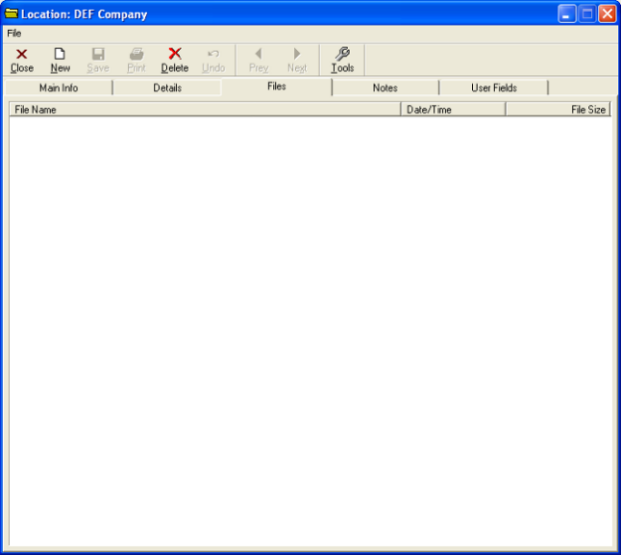
The Files tab is used for placing and accessing files related to this location.

Location: DEF Company - Files

The Notes tab allows you to write any comments that pertain to the location.

Location: DEF Company - Notes

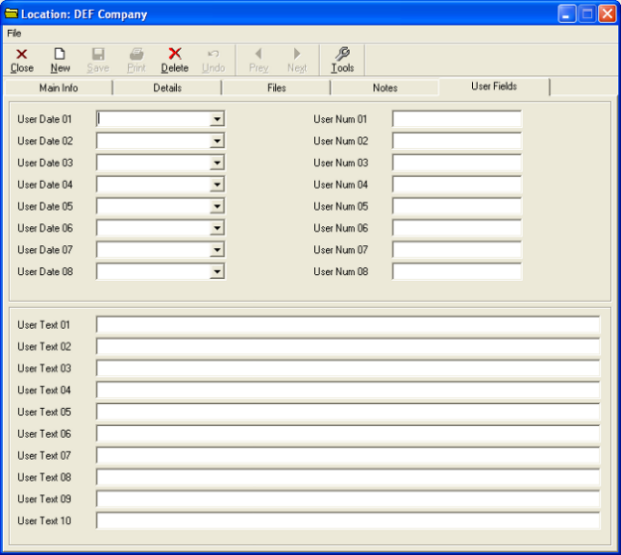
The User Fields tab allows you to name and fill out your own fields for additional location details.

Location: DEF Company - User Fields