Report Templates are used as an outline for the reports. We generate the reports using a built-in report writer.
To create a new report template:
1. Click File > Administration > Application Configuration
2. Click the + beside Cabinets and Folders
3. Click Report Templates
4. The New Report Template form will open
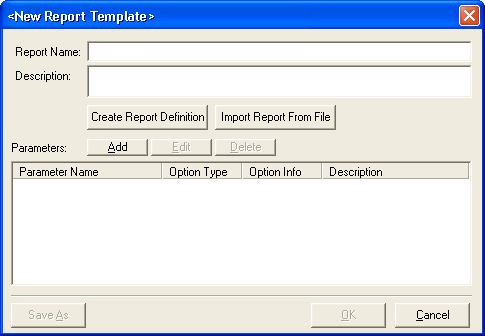
5. Click the Create Report Definition button
6. The built-in Report Writer will open
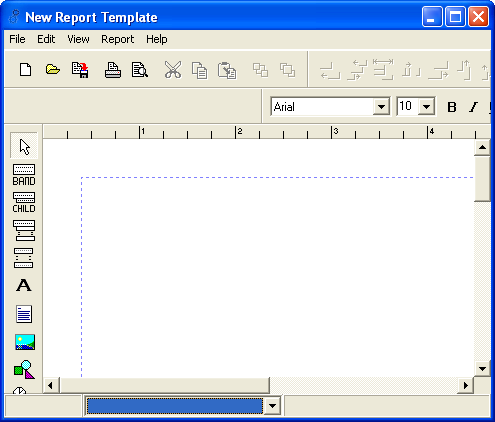
7. Create the report as you see fit
8. Click File > Save to save the report template
9. Click File > Exit to exit the Report Writer
1. Click File > Administration > Application Configuration
2. Click the + beside Cabinets and Folders
3. Click Report Templates
4. The New Report Template form will open
5. Click the Import Report From File button
6. An Open dialog box will appear. Find where the report template is saved at, choose it, and click Open
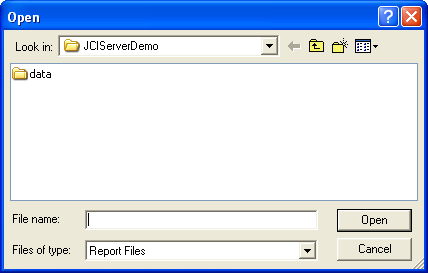
7. The template will open up in the Report Writer
8. Click File > Save to save the report template
9. Click File > Exit to exit the Report Writer
10. Click in the Report Name box to name the report
TIP: It is imperative to name the report templates exactly how Mobile Resource Manager requests. Not doing so will result in the report not opening when called upon.
11. Click Ok to save the Report Template